Web Scraping and Google Maps API with Javascript
Context
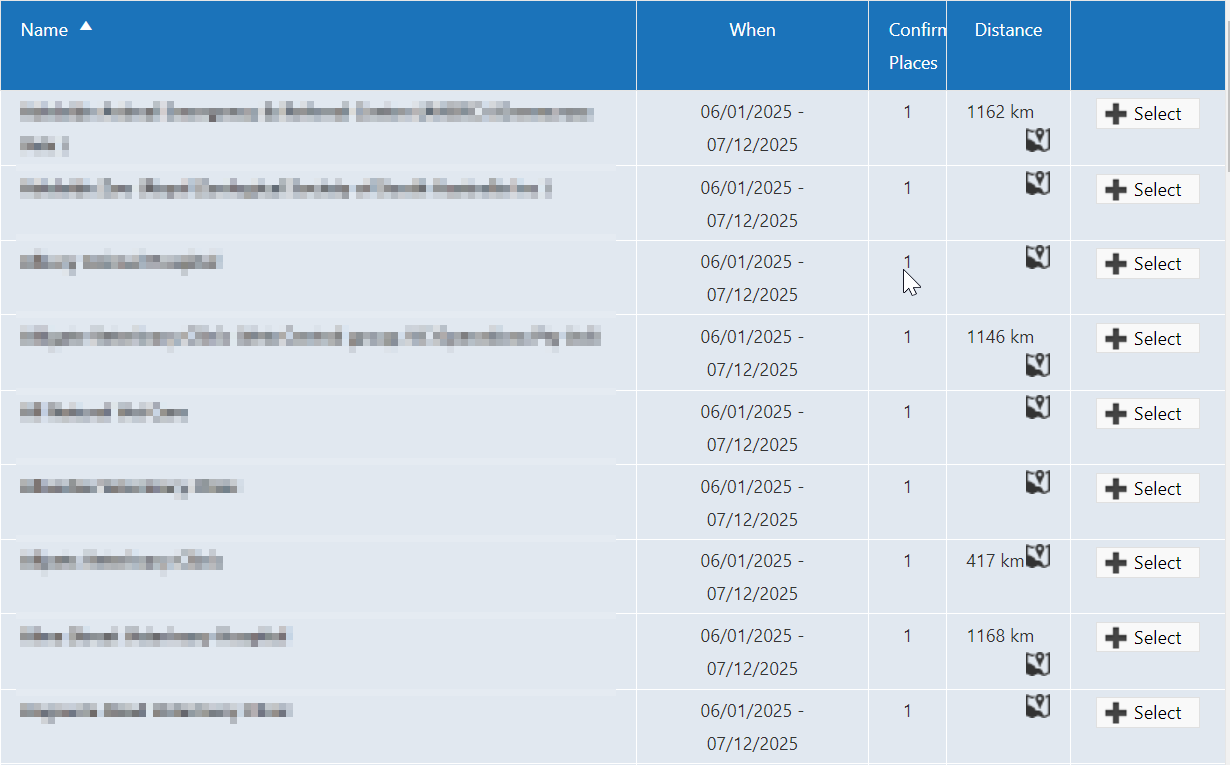
To complete her studies, my wife needed to do clinical placements at various clinics and hospitals. As she was scrolling through the list of locations, she realized that the distance of the placement locations from her house were not available to her. She really wanted to have the distances available for choosing where to do her placements.
In addition, there was no option to sort by distance or location, only by the alphabetical order of the clinics’ names.
Digging for information
I really wanted to help her with this so I logged into her account, went to the list of locations, and looked at what I had to work with.
The map icon in the list links to a google map that will automatically fill the starting point and destination. Upon inspecting the link, I found it to contain the two addresses as query parameters in this form:
http://maps.google.com/?saddr=(starting+address)&daddr=(destination+address)
This Google maps link is how I could generate the distances for each location, but I had to extract all 300+ locations and I did not want the hassle of doing it manually.
Scraping data
To scrape the required data, I inspected the network requests and found where the frontend was receiving it.
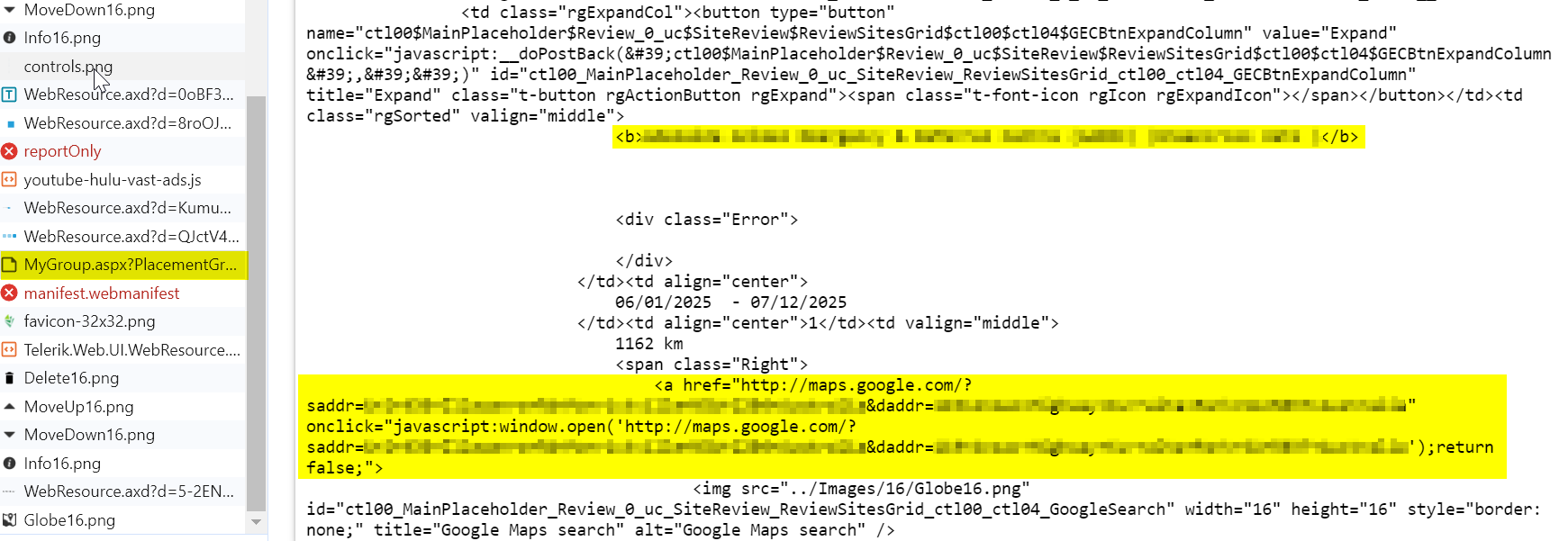
The data response is a rendered html containing the clinic name, as well as the Google map URL with the query parameters of the addresses.
I copied the whole response into Visual Studio Code and using the multi-cursor function, copied only the clinic name and Google map URL into an excel sheet.
With this, I now had the required data to work on.
Resource discovery
Now that I have the name and address of the various locations, next, I needed a way to calculate the distances between the two locations.
The Google distance matrix API is able to meet the requirements for this. It can return the distance between two addresses.
To use this API, I set up a Google developer account and generated an API key to use.
Getting started
When getting started on the script, I chose JavaScript to be my language of choice: there was no particular reason except that I was using it for other front-end projects at the time.
The general flow of the script went like this:
Extract source and destination addresses from excel > input each address pair into google API > retrieve the results and save it into the excel file
For interaction with excel files, I used the following libraries
There is a helper library for Google map API
Application
After finding the resources I needed, it was time to actually put the application together.
Do take note that I added an additional step of converting addresses to their latitude and longitude before getting the distance between them (I missed out that addresses can be used directly).
Main function
async function script() {
  const excelInput = await readExcel()
  const rawAddresses = excelInput.entries
  const origin = excelInput.origin
  const originLatLng = await geoCodeAddress(origin)
  const geoCodedAddresses = await geoCodeAddresses(rawAddresses)
  const addressesWithDistance = await originDestinationDistanceAddresses(
    originLatLng,
    geoCodedAddresses,
  )
  await generateWriteExcelData(origin, addressesWithDistance)
}
The main function handles the flow of the script, from reading the excel file for the inputs, data cleaning, calling APIs, and writing outputs into the excel file.
Reading excel file for addresses
type ExcelInput = {
  origin: string
  entries: {
    name: string
    address: string
  }[]
}

async function readExcel(): Promise<ExcelInput> {
  const rows = await readXlsxFile('./input.xlsx')
  const origin = rows[0][4]
  const entries: { name: string; address: string }[] = []
  for (let i = 1; i < rows.length; i++) {
    const entry = {
      name: rows[i][0],
      address: scrapRawUrl(rows[i][1]),
    }
    entries.push(entry)
  }
  const result: ExcelInput = {
    origin,
    entries,
  }
  return result
}

function scrapRawUrl(rawUrl: string) {
  const removedQuotes = rawUrl.replace('"', '')
  const rawDestAddr = removedQuotes.split('daddr=')[1]
  let destAddr = rawDestAddr
  while (indexOf(destAddr, '+') >= 0) {
    destAddr = destAddr.replace('+', ' ')
  }
  return destAddr
}
The readExcel function retrieves the excel file from the same location as where the script is executed.
The origin address is located at the 1st row and 4th column.
The destination name and addresses are on every row, with the name in the 1st column, and the address in the 2nd column.
The addresses are in the form of Google map links, so the scrapRawUrl function retrieves the address from the raw data.
Fetching origin and destination latitude and longitude
async function geoCodeAddress(address: string): Promise<LatLngLiteral> {
  const args: GeocodeRequest = {
    params: {
      address,
      key: apiKey,
    },
  }
  const res: GeocodeResponse = await client.geocode(args)

  return res.data.results[0].geometry.location
}

async function geoCodeAddresses(
  rawAddresses: { name: string; address: string }[],
): Promise<{ name: string; address: string; latLng: LatLngLiteral }[]> {
  const geoCodedAddresses: {
    name: string
    address: string
    latLng: LatLngLiteral
  }[] = []
  for (let i = 0; i < rawAddresses.length; i++) {
    const rawAddress = rawAddresses[i]
    const latLng = await geoCodeAddress(rawAddress.address)
    const geoCodedAddress = { ...rawAddress, latLng }
    geoCodedAddresses.push(geoCodedAddress)
  }
  return geoCodedAddresses
}
geoCodeAddress takes in the address as a string, and returns the latitude and longitude of it by calling Google maps API.
geoCodeAddresses takes in many addresses and returns the respective latitude and longitude in the format used by the script.
Fetching distance between origin and destination
async function originDestinationDistanceAddresses(
  origin: LatLngLiteral,
  geoCodedAddresses: {
    name: string
    address: string
    latLng: LatLngLiteral
  }[],
): Promise<
  {
    name: string
    address: string
    latLng: LatLngLiteral
    distanceFromOrigin: string
  }[]
> {
  const originDestinationDistanceAddresses: {
    name: string
    address: string
    latLng: LatLngLiteral
    distanceFromOrigin: string
  }[] = []
  for (let i = 0; i < geoCodedAddresses.length; i++) {
    const distance = await originDestinationDistance(origin, geoCodedAddresses[i].latLng)
    const result = {
      ...geoCodedAddresses[i],
      distanceFromOrigin: distance,
    }
    originDestinationDistanceAddresses.push(result)
  }

  return originDestinationDistanceAddresses
}

async function originDestinationDistance(
  origin: LatLngLiteral,
  destination: LatLngLiteral,
): Promise<string> {
  const args: DistanceMatrixRequest = {
    params: {
      origins: [origin],
      destinations: [destination],
      units: UnitSystem.metric,
      key: apiKey,
    },
  }

  const res: DistanceMatrixResponse = await client.distancematrix(args)

  const distance = res?.data?.rows[0]?.elements[0]?.distance?.text.replace(' km', '') || '99999999'

  return distance
}
originDestinationDistanceAddresses takes in the coordinates of the origin and the destinations and returns the respective distance for all the destinations.
originDestinationDistance takes in two sets of coordinates, and uses Google map API to get the distance between them. If the distance is not available (not able to reach by driving), it would be represented by ‘99999999’ instead.
Writing results
async function generateWriteExcelData(
  origin: string,
  addressesWithDistance: {
    name: string
    address: string
    latLng: LatLngLiteral
    distanceFromOrigin: string
  }[],
): Promise<void> {
  const data: any[] = []
  const HEADER_ROW = [
    {
      value: 'No.',
      fontWeight: 'bold',
    },
    {
      value: 'Location',
      fontWeight: 'bold',
    },
    {
      value: 'Address',
      fontWeight: 'bold',
    },
    {
      value: 'Distance From Origin (km)',
      fontWeight: 'bold',
    },
    {
      value: 'Origin:',
      fontWeight: 'bold',
    },
    {
      value: origin,
      fontWeight: 'bold',
    },
  ]
  data.push(HEADER_ROW)

  for (let i = 0; i < addressesWithDistance.length; i++) {
    const dataEntry = [
      {
        type: String,
        value: `${i + 1}`,
      },
      {
        type: String,
        value: addressesWithDistance[i].name,
      },
      {
        type: String,
        value: addressesWithDistance[i].address,
      },
      {
        type: String,
        value: addressesWithDistance[i].distanceFromOrigin,
      },
    ]
    data.push(dataEntry)
  }

  await writeXlsxFile(data, {
    filePath: './result.xlsx',
  })
}
generateWriteExcelData writes the respective distance from origin for all of the destinations and saves the excel to ‘result.xlsx’ in the same location.
Conclusion
My wife was very happy with the results, it helped her to better plan her clinical rotations by being able to conveniently choose clinics based on their location.
I had fun building the script for her, it was the first time using Google APIs and it was a good experience.
In the future, if I were to do something similar, I would instead use Python or Java, where there are mature libraries for interaction with excel. I ran into some compatibility issues along the way when using the excel libraries in the project.
Another thing I would do differently is to use a smaller data set for testing. Testing over 300 addresses caused a lot of API calls and could have racked up costs from using Google API.